
Patients
A patient is the starting point of every clinical workflow. Patients belong to a center, and each patient can have multiple episodes — one per treatment course.
Patient list
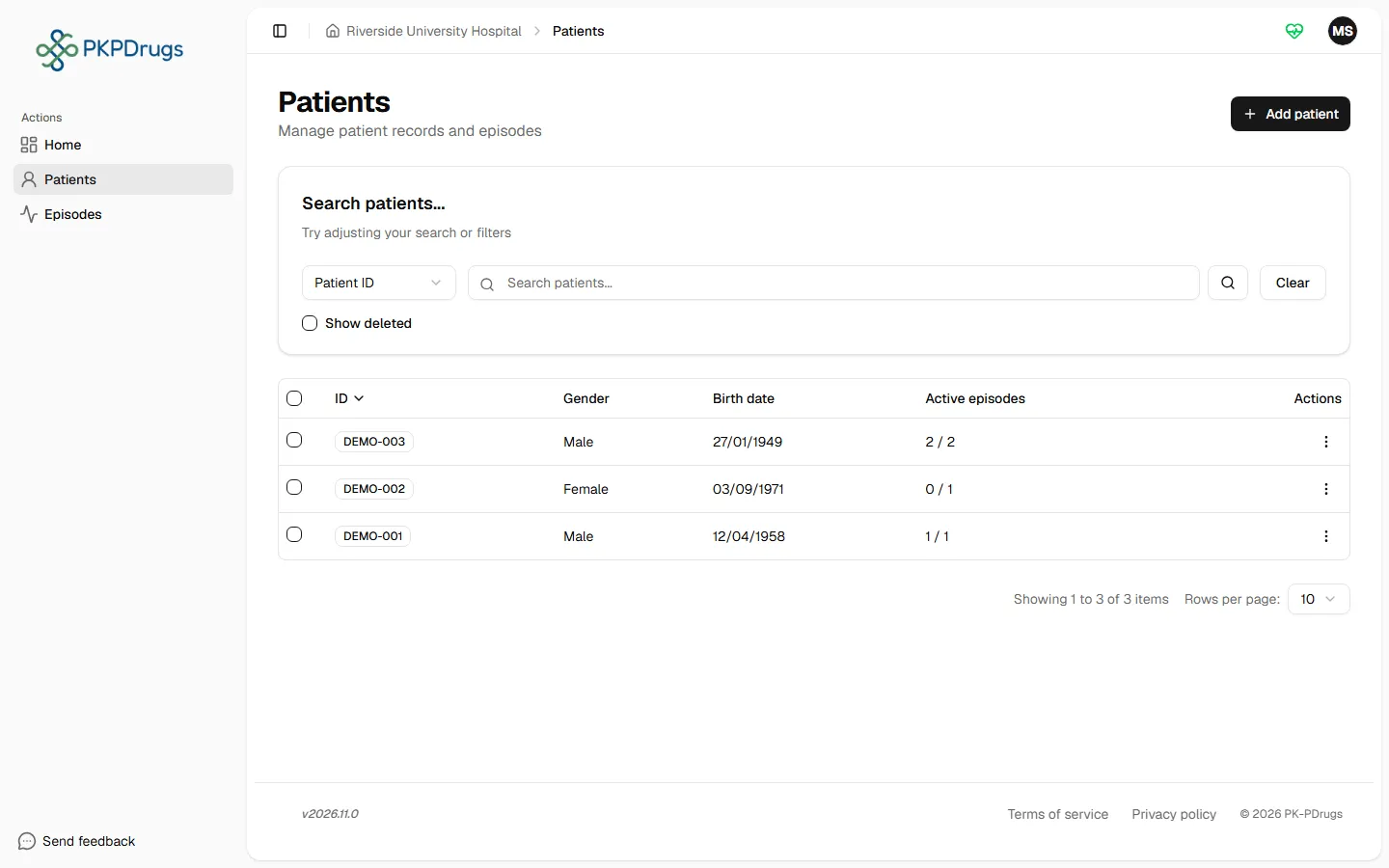
Section titled “Patient list”Open Patients in the sidebar to see everyone in your center (administrators can see and filter across centers). Use the search box to find a patient by their ID.
Adding a patient
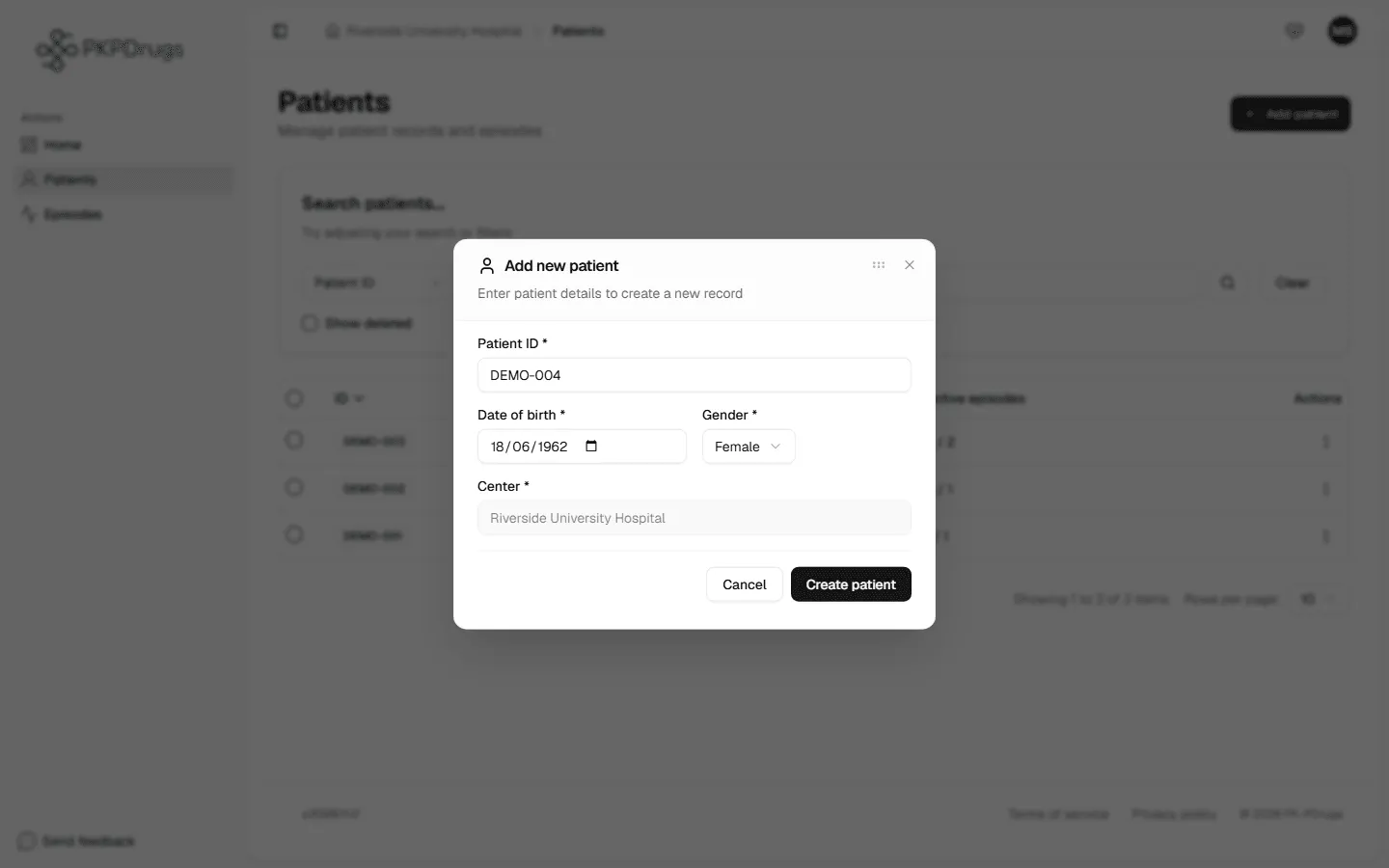
Section titled “Adding a patient”Select Add patient and fill in:
| Field | Notes |
|---|---|
| Patient ID | A text identifier up to 50 characters. Must be unique within the center. |
| Birthdate | Cannot be in the future. The patient’s age is derived from this. |
| Gender | Male or Female. |
| Center | Automatically set to your own center and locked, unless you’re an administrator (who can choose any center). |
Patient detail
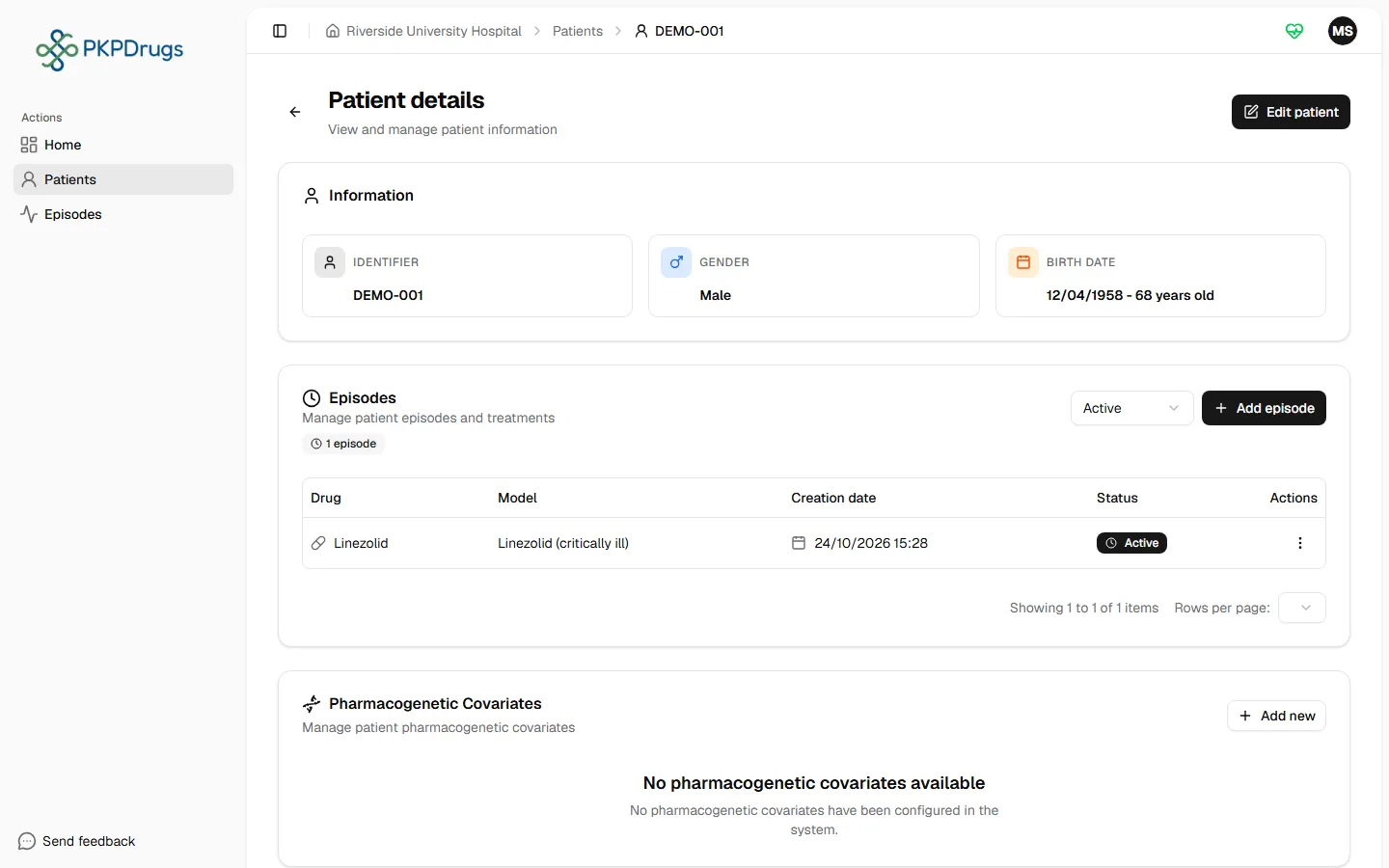
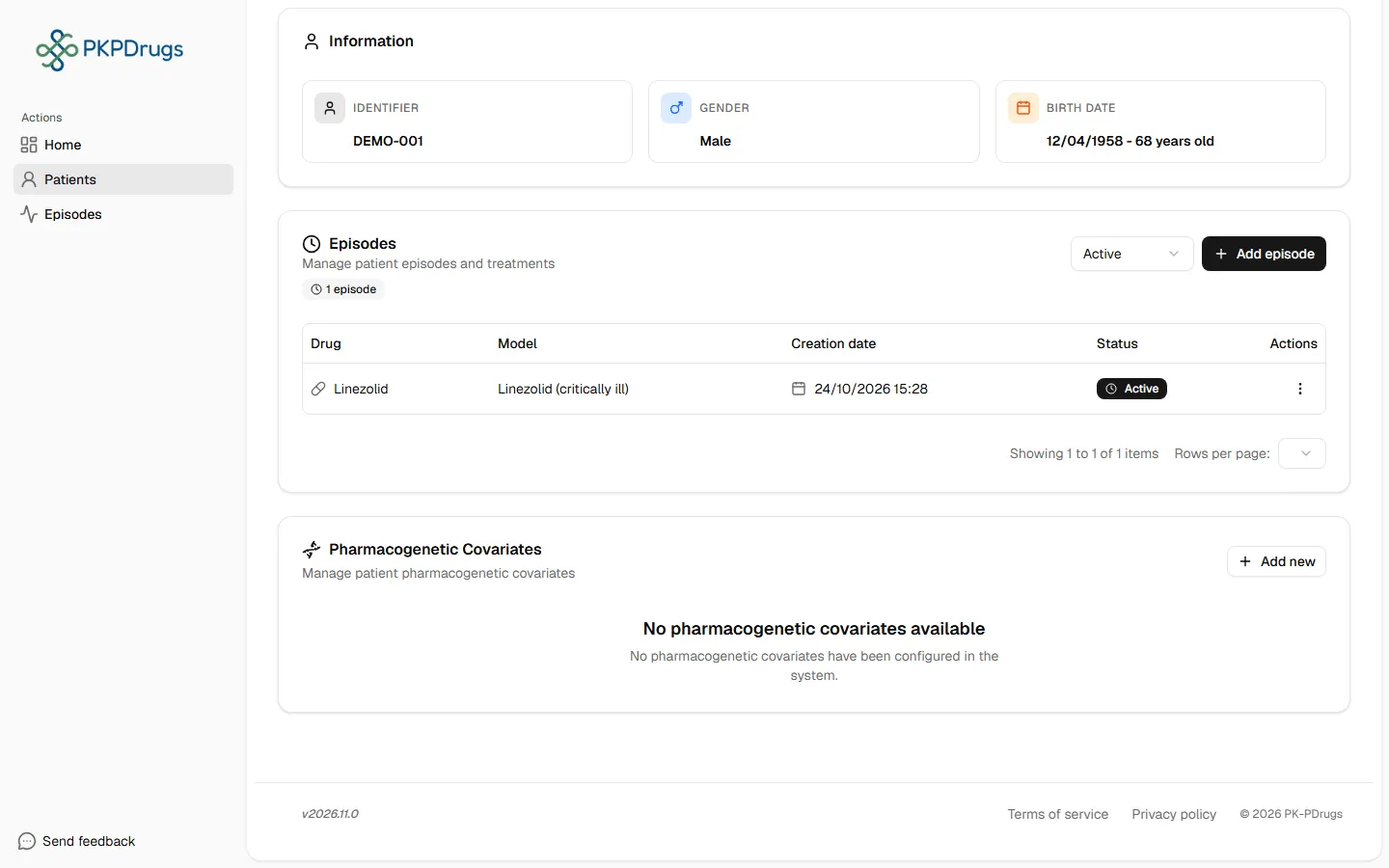
Section titled “Patient detail”Open a patient to see their full record: their editable details, the list of their episodes, and their pharmacogenetic covariates (genetic factors that apply across all of their episodes, separate from the per-episode covariates described in Covariates).
To edit, use the edit action on the page — birthdate, gender, and (for administrators) center can all be changed. Saving with a blank required field is rejected with a “field is required” message next to that field.
Deleting a patient
Section titled “Deleting a patient”Deleting a patient is permanent and cascades to everything attached to them — every episode, dose, concentration, and covariate they have. The app shows an explicit warning before you can confirm: “All associated data (Episodes, Records…) will be PERMANENTLY deleted. This action cannot be undone.” There is no undo, so use this only for genuine mistakes (e.g. a duplicate record), not to “archive” a patient you no longer need to see — finalizing their episodes (see Episodes → Episode lifecycle) is the reversible alternative.
Fields, checks and limits
Section titled “Fields, checks and limits”PKPDrugs checks every form before it saves. If a value is wrong, the message appears next to the field and nothing is saved.
Add patient
Section titled “Add patient”| Field | What to enter | Unit | Required | Minimum | Maximum | Message you see if it is wrong |
|---|---|---|---|---|---|---|
| Patient ID | The code your center uses for this patient. Use a code, not the patient’s name. | Text | Yes | 1 character | 50 characters | “Patient ID is required” or “Patient ID is too long”. If the code is already used in your center: “A patient with this ID already exists.” |
| Date of birth | The patient’s birth date. PKPDrugs works out the age from it. | Date | Yes | No lower limit is checked | Today (a future date is not accepted) | “Date of birth is required” or “Birth date cannot be in the future” |
| Gender | Male or Female. | Choice | Yes | - | - | “Gender is required” |
| Center | The center that owns the patient. It is filled in for you, unless you are an administrator. | Choice | Yes | - | - | “Center is required” |
The same Patient ID can exist in two different centers. It cannot exist twice in the same center. This is so that a clinician never sees, or learns about, a patient of another center.
Edit patient
Section titled “Edit patient”| Field | What to enter | Unit | Required | Minimum | Maximum | Message you see if it is wrong |
|---|---|---|---|---|---|---|
| Date of birth | The corrected birth date. | Date | Yes | No lower limit is checked | Today | “Birth date is required” or “Birth date cannot be in the future” |
| Gender | Male or Female. | Choice | Yes | - | - | “Gender is required” |
| Center | Only administrators can change it. | Choice | Yes | - | - | “Center is required” |
The Patient ID cannot be changed after the patient is created.
Possible errors
Section titled “Possible errors”| Message | What it means | What to do |
|---|---|---|
| A patient with this ID already exists | The Patient ID must be unique within the center, and this one is already taken. | Choose a different ID, or open the existing patient if this was meant to be the same person. |
| Birth date cannot be in the future | The date entered is later than today. | Correct the date — PKPDrugs derives the patient’s age from it, so it must be a real past date. |
| Center is required | No center was selected (only possible for administrators, since your own center is pre-filled otherwise). | Choose a center before saving. |
| (field) is required | A required field (Patient ID, birthdate, gender) was left blank. | Fill in every field marked as required before submitting. |
Next: Episodes.