
Logging in
Signing in
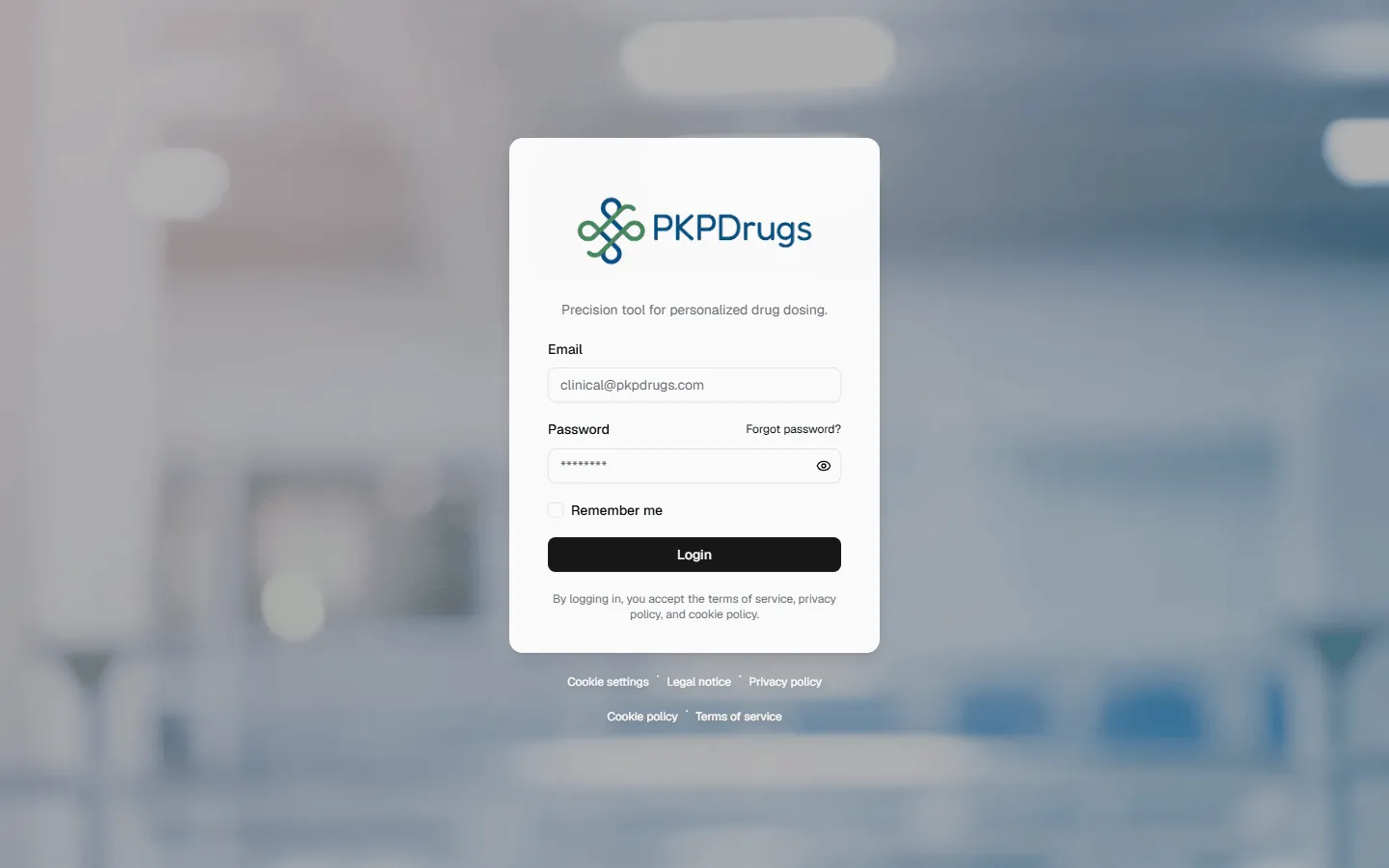
Section titled “Signing in”Open the app and enter your email and password. Your password is encrypted in the browser before it’s sent. Check Remember me to stay signed in on this device.
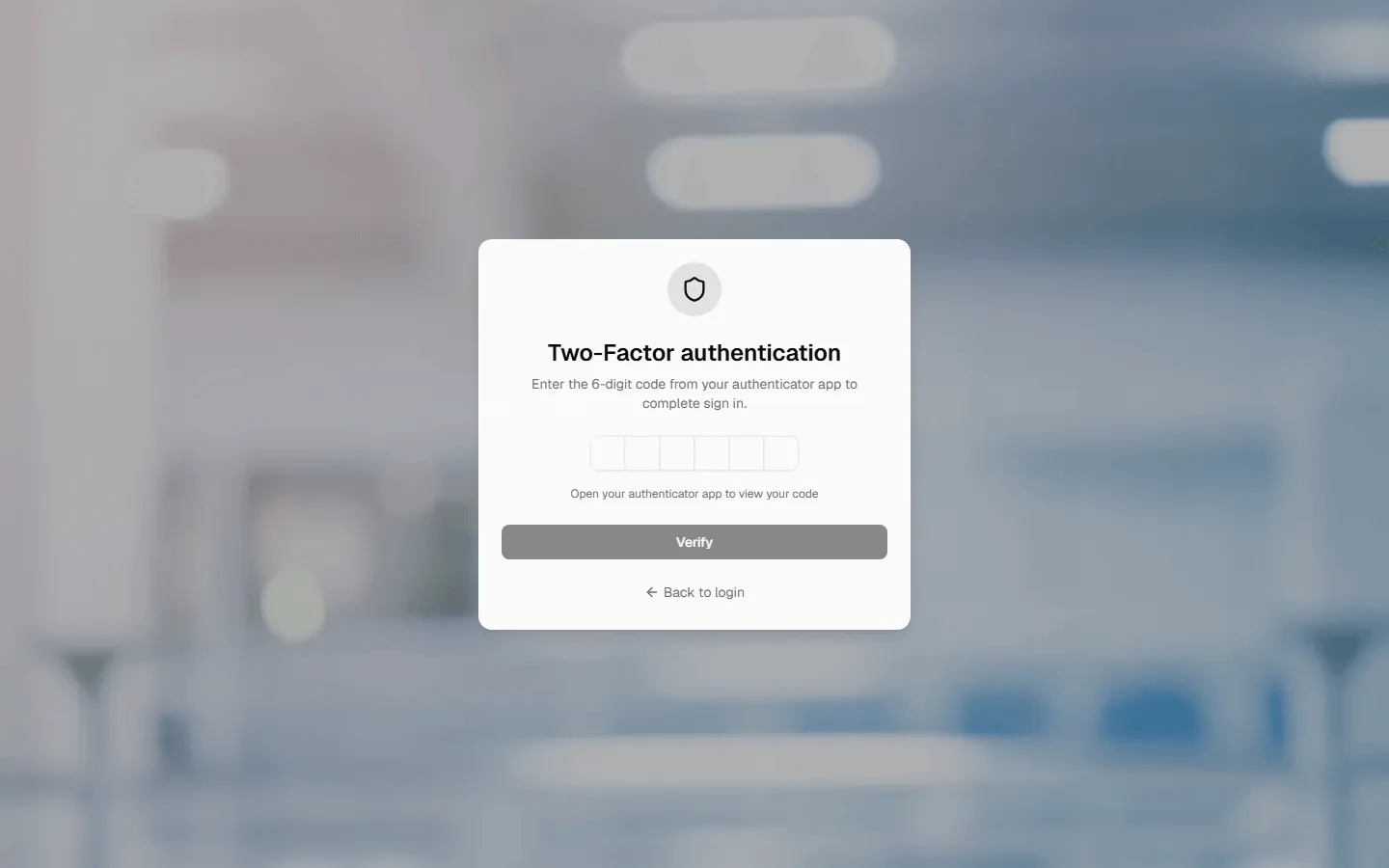
If your account has multi-factor authentication enabled, you’ll be redirected to a one-time code screen after submitting your password:
Forgot your password?
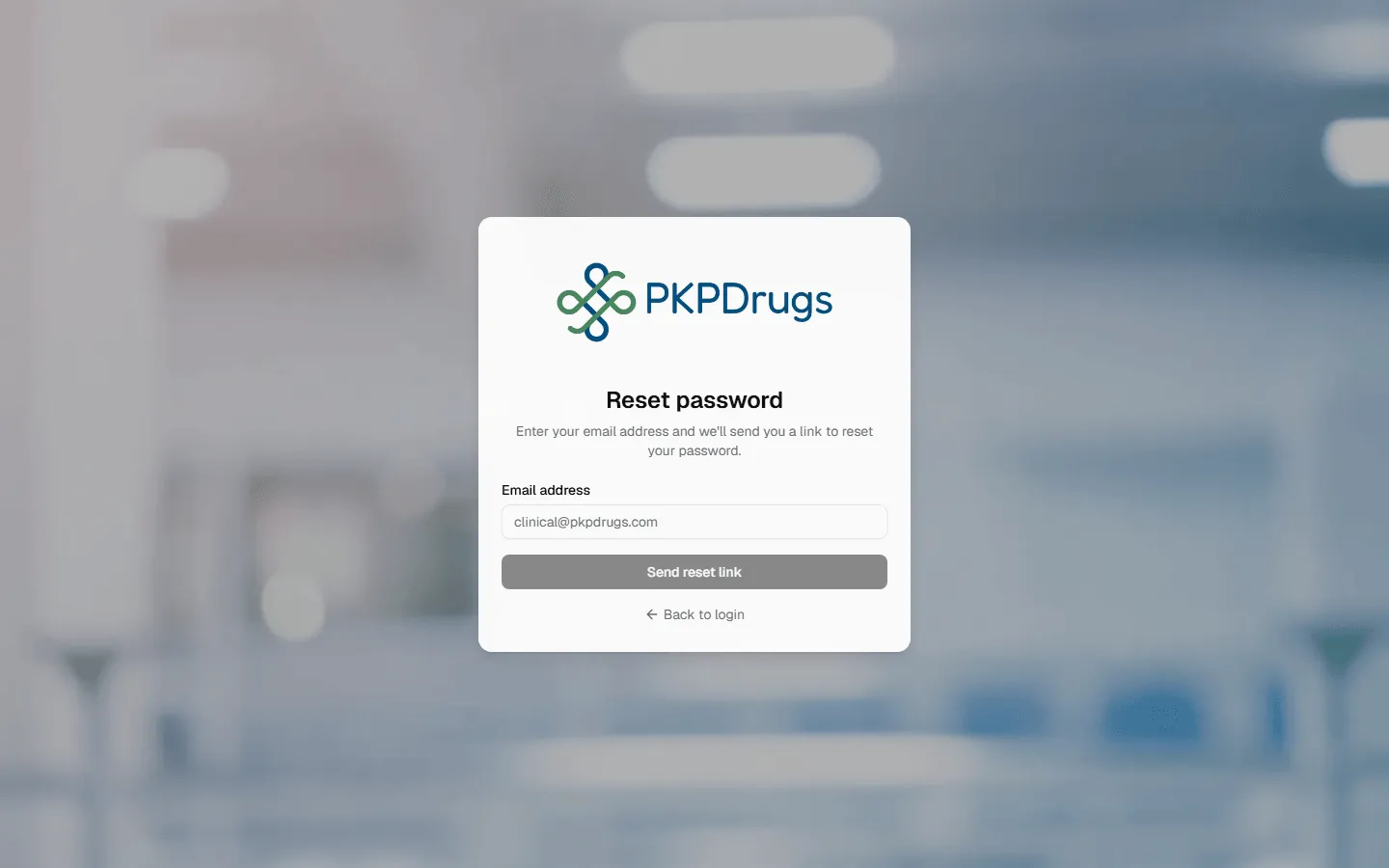
Section titled “Forgot your password?”From the login screen, choose Forgot password and enter your email. If the address matches an account, you’ll receive a reset link.
First login: setting up your account
Section titled “First login: setting up your account”The first time you sign in with a newly created account, PKPDrugs walks you through a short setup:
- Choose a new password.
- Optionally add a profile photo.
- Optionally enable multi-factor authentication by scanning a QR code with an authenticator app (TOTP).
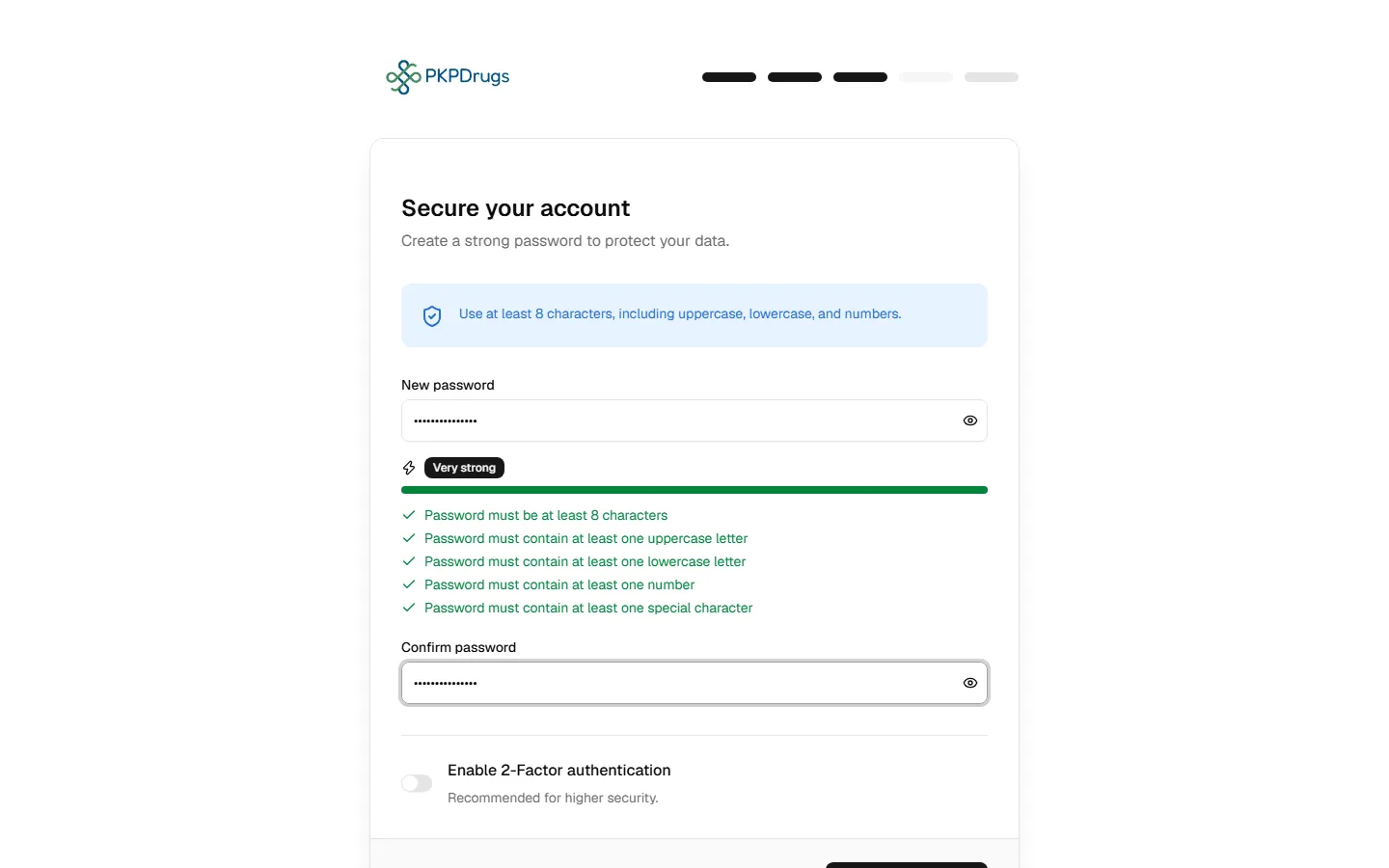
Your new password must be at least 8 characters and include at least one lowercase letter, one uppercase letter, one digit and one special character (any character other than the letters A to Z and a to z and the digits 0 to 9), and at most 128 characters. This same policy applies later whenever you change your password from Your account → Security.
“No center assigned”
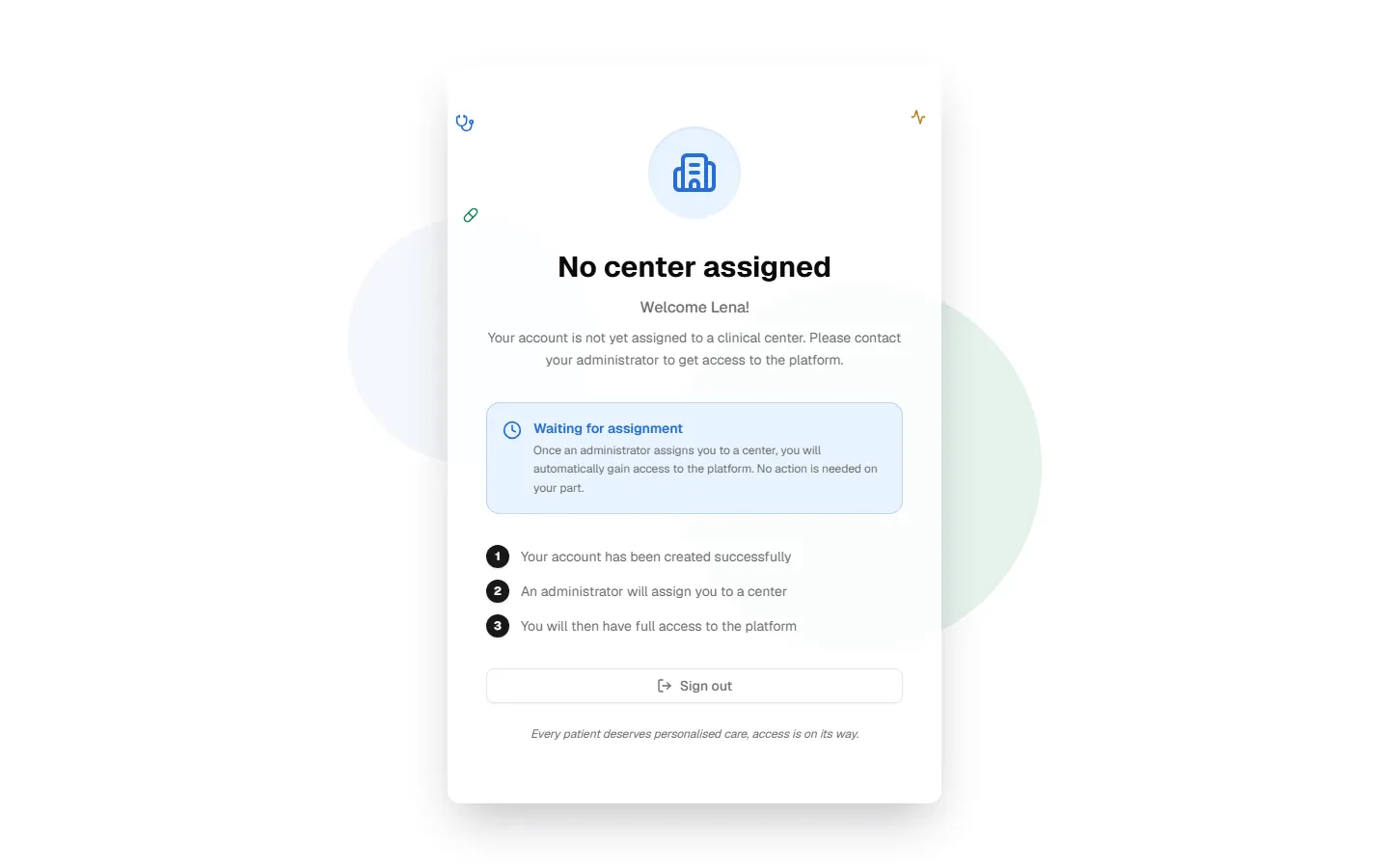
Section titled ““No center assigned””Every clinical user must belong to a center to use the app — it scopes which patients, episodes, and drugs you can see. If an administrator hasn’t assigned you to a center yet, you’ll see a message instead of the normal app after signing in:
Possible errors
Section titled “Possible errors”| Message | What it means | What to do |
|---|---|---|
| Invalid credentials / Login failed | The email or password is wrong. | Double-check both fields; use Forgot password if you’re not sure. |
| Invalid verification code | The 6-digit MFA code was wrong, expired, or already used. | Wait for your authenticator app to generate a new code and try again — codes typically refresh every 30 seconds. |
| Please enter a 6-digit code | The MFA field was submitted incomplete. | Enter all 6 digits from your authenticator app. |
| Invalid session, please login again | The MFA step took too long, or the login session expired between the password step and the code step. | Start over from the login page. |
| Too many password reset requests. Please wait {minutes} minutes before trying again | The reset-password form is rate-limited to prevent abuse. | Wait for the indicated time before requesting another reset email. |
| This password reset link has expired or has already been used | Reset links are single-use and time-limited. | Request a new reset link from the login page. |
Next: Interface overview.
Fields, checks and limits
Section titled “Fields, checks and limits”| Field | What to enter | Unit/format | Required | Minimum | Maximum | Message you see if it is wrong |
|---|---|---|---|---|---|---|
| The address of your account | Email address | Yes | 1 character | No limit checked | Your browser shows its own prompt if the field is empty or not an email address; an unknown address gives “Invalid credentials” | |
| Password | Your password | Text | Yes | 1 character | No limit checked | Your browser shows its own prompt if the field is empty; a wrong password gives “Invalid credentials” |
| Remember me | Tick to stay signed in on this device | Tick box | No | - | - | - |
| Verification code (MFA) | The code from your authenticator app | 6 digits | Only if MFA is on | 6 digits | 6 digits | “Please enter a 6-digit code”; “Invalid verification code” |
| New password | Your new password | Text, 8 to 128 characters | Yes | 8 characters | 128 characters | “Password must be at least 8 characters”; “Password must contain at least one lowercase letter”; “Password must contain at least one uppercase letter”; “Password must contain at least one number”; “Password must contain at least one special character” |
| Confirm password | Your new password again | Text | Yes | Same as new password | 128 characters | “Passwords do not match” |
Rules that apply to everyone
These values are the defaults. Your administrator can change them. The lock counts failed attempts for each email address and for each computer address.
- Password: 8 to 128 characters, with a lowercase letter (a to z), an uppercase letter (A to Z), a digit (0 to 9) and a special character (any other character, accented letters included). The password field does not accept more than 128 characters.
- Lock after failed attempts: after 5 failed sign-ins you must wait 1 minute. Each further failure doubles the wait, up to 60 minutes. The count starts again after 15 quiet minutes. You see “Too many failed attempts. Try again in N minutes.”
- Session timeout: you are signed out after 30 minutes without activity (“Your session ended because of inactivity. Sign in again to continue.”). A normal session lasts at most 24 hours; with Remember me, at most 7 days.
- MFA: the code step must be finished within 5 minutes of entering your password.
- Password reset: you can ask for 2 reset emails every 2 minutes; further requests make you wait longer, up to 60 minutes.
- First name and last name (account setup): both required (“Please provide both first and last name”); up to 60 characters; letters, spaces, apostrophes, periods and hyphens only. The server checks the length and the characters.